Commerce7 Google Analytics 4 setup: see which wines sell
Commerce7 already sends the ecommerce events Google Analytics 4 needs, from a wine view to a finished order. Most winery sites never pass them on. Here is how to connect them with Google Tag Manager, and how to check that they arrive.
 By Dumitru C., 7Labs
Updated
4 min read
By Dumitru C., 7Labs
Updated
4 min read
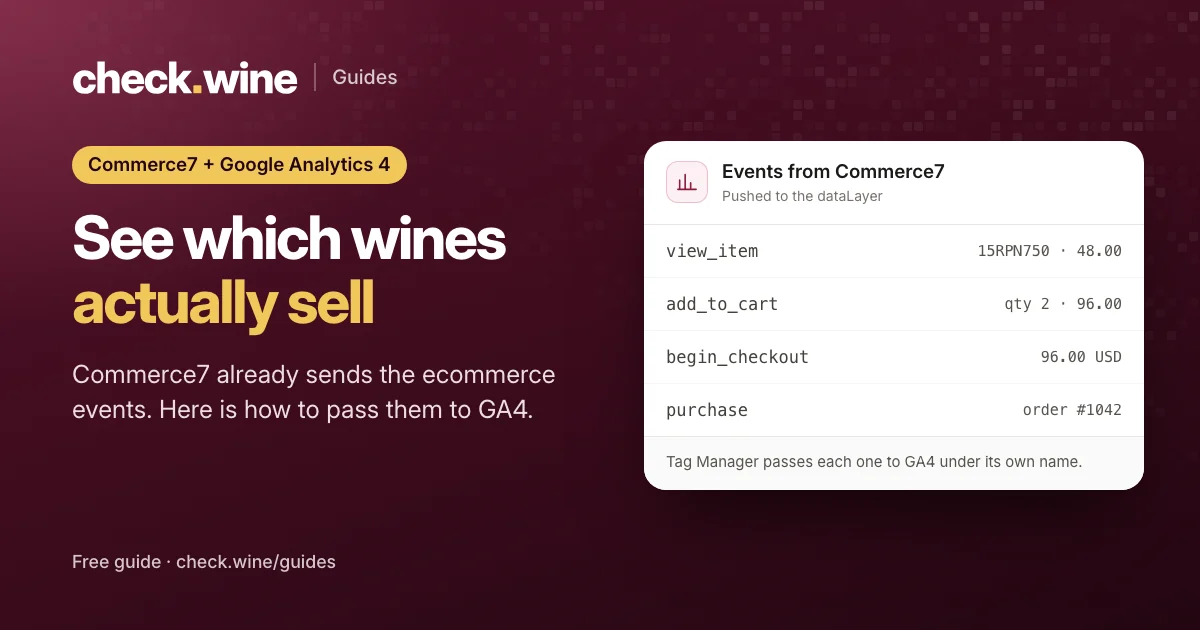
What Commerce7 sends on its own
The current Commerce7 storefront pushes standard Google Analytics 4 ecommerce events into the page’s dataLayer as people shop. There is nothing to switch on in Commerce7. The events are there on any site that uses the storefront:
| Shopper action | Event in the dataLayer |
|---|---|
| Sees a list of wines | view_item_list |
| Opens a wine | view_item |
| Clicks a wine in a list | select_item |
| Adds a wine to the cart, or removes one | add_to_cart, remove_from_cart |
| Opens the cart | view_cart |
| Starts checkout | begin_checkout |
| Fills in details, shipping and payment | add_customer_info, add_shipping_info, add_payment_info |
| Places the order | purchase, with the order number as transaction_id |
| Club and reservation steps | view_club_list, select_club, club_purchase, select_reservation, reservation_purchase |
Product events carry the wine’s SKU as item_id, its name, its price and your store currency, in Google’s standard ecommerce format. There is no refund event, so refunds made in Commerce7 never reach GA4 on their own.
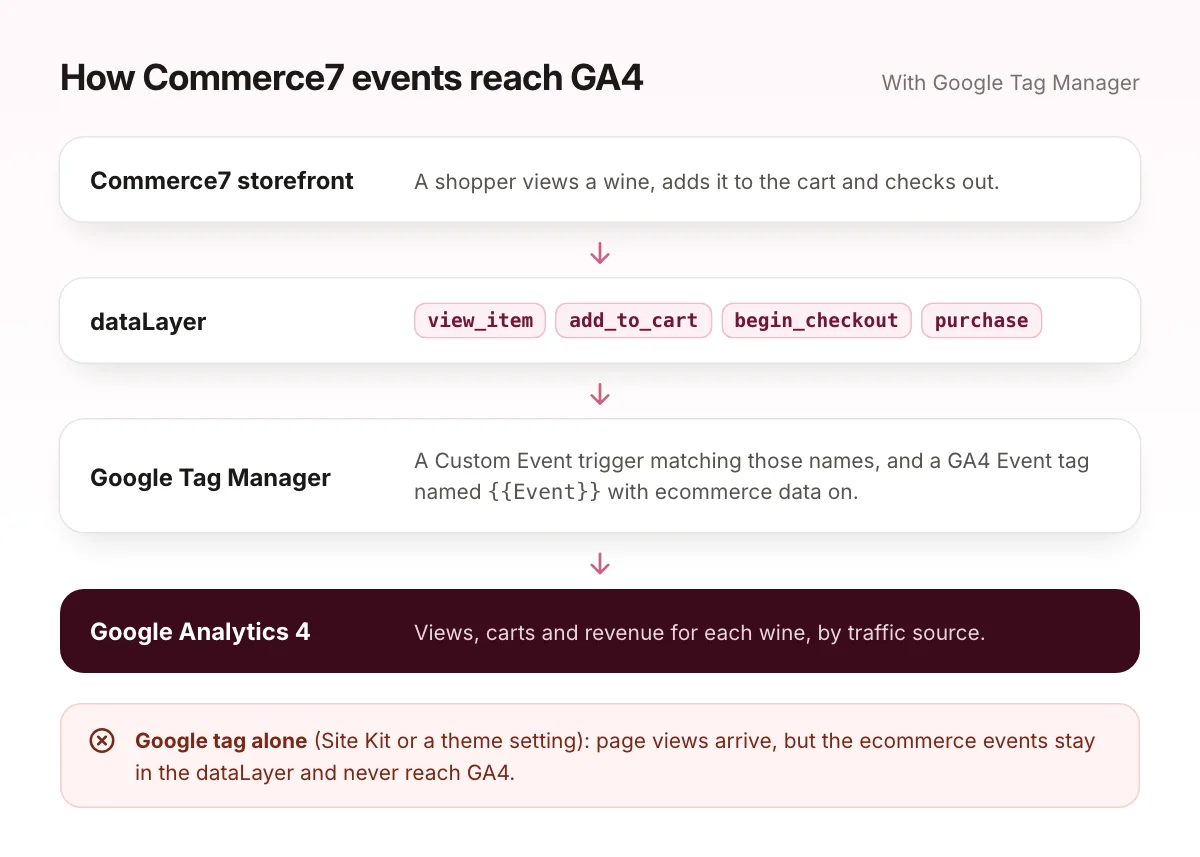
Why GA4 often sees none of it
Those events sit in the dataLayer until a tag reads them. Two common setups never do:
- GA4 added with the Google tag alone, for example through Google Site Kit or a theme setting. The Google tag sends page views, but it does not turn Commerce7’s
dataLayerevents into GA4 events, so the ecommerce events are dropped. - Google Tag Manager with only a page view tag. The container loads, but no tag listens for
view_itemorpurchase.
The result in GA4: plenty of traffic, empty Monetization reports, no wine names, and no revenue by source. That makes it hard to tell which ads, emails or posts sell wine.
Commerce7 Google Analytics setup with Google Tag Manager
- Put your Tag Manager container on every page of the site, using the head and body snippets Tag Manager gives you. On WordPress, a plugin or your theme can add them. On Commerce7’s built-in storefront, paste them into the storefront settings, which take scripts for the head and body.
- Add a Google tag with your GA4 measurement ID (it starts with G-), firing on all pages. If GA4 is also added another way, such as Site Kit, remove one of them so page views aren’t counted twice.
- Create a trigger: type Custom Event, event name
view_item_list|view_item|select_item|add_to_cart|remove_from_cart|view_cart|begin_checkout|add_shipping_info|add_payment_info|purchase, with “Use regex matching” ticked. - Create a GA4 Event tag: event name
{{Event}}. Under More Settings, then Ecommerce, tick “Send Ecommerce data” and set the data source to Data Layer. Fire it on the trigger from step 3. - Publish the container.
This sends every shopping step to GA4 under its standard name, so the built-in ecommerce reports fill in without any custom setup.
Test before you trust it
- In Tag Manager, click Preview and open your site in the Tag Assistant window.
- Open a wine page.
view_itemshould appear in Tag Assistant’s event list, with your GA4 Event tag under Tags Fired. - In GA4, open Admin, then DebugView. The same
view_itemshould arrive with the wine’sitem_idand price. - Add a wine to the cart and start checkout, and watch those events arrive too.
- If you can, place a real low-value order and refund it in Commerce7, to see
purchasearrive with the order number and value.
Once it works
- Key events.
purchaseis a key event in GA4 by default. Check that it still is, and decide whether club signups (club_purchase) should be one too. - Google Ads. Link GA4 to Google Ads and import
purchaseas a conversion, so your campaigns optimize on real orders and their value. - Your wine report. In GA4, open Reports, Monetization, then Ecommerce purchases. It lists views, carts and revenue per wine.
- Refunds. They don’t flow back from Commerce7, so GA4 revenue runs a little high. Compare it with your Commerce7 reports once a month.
Commerce7 gotchas
- Every buy button fires
view_item. A shop page with a buy button under each wine sends one view per wine, so GA4 counts views for wines nobody opened. If that skews your report, add a condition to the trigger soview_itemonly fires on single wine pages. - Cookie banners. If your consent tool holds Tag Manager until a visitor accepts, GA4 only sees visitors who accept. Check that this is what you intended for US visitors.
- Two installs. GA4 in Site Kit and in Tag Manager at the same time doubles your page views. Keep one.
- An empty container. A Tag Manager container with no tags still loads on every page and does nothing. Either use it or remove it.
The same dataLayer events can feed Meta too. The Commerce7 Meta pixel guide covers that side.
If you’d rather not touch Tag Manager, the Google measurement setup is a $400 fixed-price fix: GA4 installed or repaired, ecommerce events from wine view to purchase, and Google Ads conversions with order values, tested with real Commerce7 orders.
Read next
All guides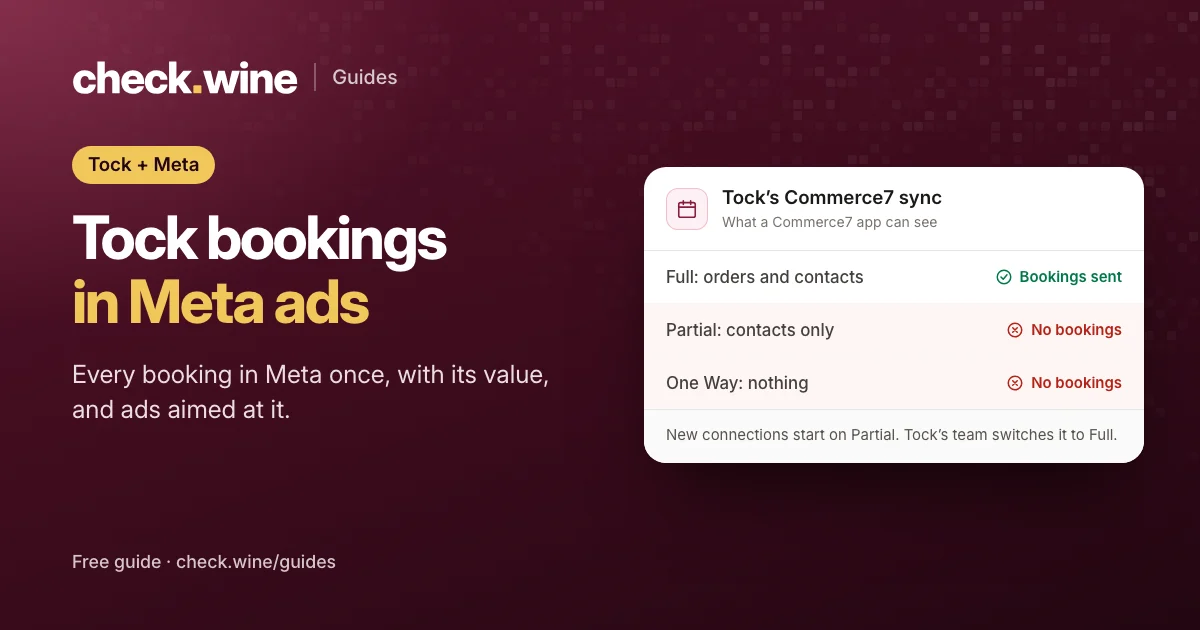 Guide
Guide
Tock reservations in Meta ads
How Tock bookings reach Meta: Tock’s own pixel, or Commerce7 Full sync and the Conversions API. Avoid double counting and optimize your ads for bookings.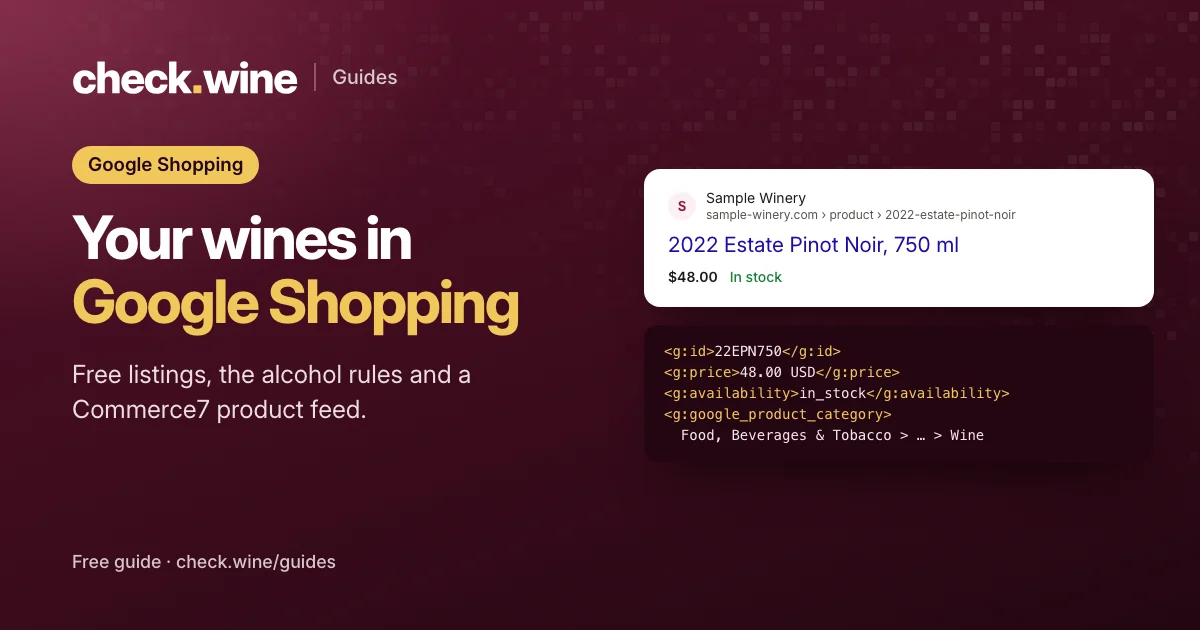 Guide
Guide
Google Shopping for Commerce7 wineries
How a Commerce7 winery gets its wines into Google’s free listings and Shopping ads: the alcohol rules, the feed fields that matter and four feed apps compared. Guide
Guide